 Lesson Plans
How to Use Notion to Organize Your ESL Lesson Plans
I switched to Notion for my ESL lesson plans in September 2024 after my Google Drive became an unsearchable graveyard of 200+ files with names like "lesson_plan_final_v3_REAL_FINAL.docx." Three months later, I had a system that let me find any lesson I'd ever taught in under 10 seconds.
Setting it up took a weekend. But it was worth it.
The Basic Setup: A Lesson Plan Database
Notion's real power for ESL lesson plans is the database feature. Instead of individual documents floating in folders, you create one database where every lesson is an entry with tags, dates, and properties you can filter.
Here's the structure I use:
- Title: Topic name (e.g., "Making Complaints at Work")
- Level: Select property -- A1, A2, B1, B2, C1
- Skill Focus: Multi-select -- Speaking, Listening, Reading, Writing, Grammar, Vocabulary
- Duration: Number -- 30, 45, 60, 90 minutes
- Date Last Used: Date property
- Class: Select -- Morning Beginners, Tuesday Intermediate, Thursday Advanced
- Materials: Links to handouts, slides, audio files
Each database entry opens into a full page where the actual lesson plan lives. Same content you'd put in a Google Doc, but now it's tagged and filterable.
What Notion Does Better Than Google Docs
Filtering. Show me all B1 speaking lessons I taught this semester. Done. Show me everything on the topic of "health" across all levels. Two clicks. In Google Docs, this requires remembering file names or scrolling through folders.
Templates. Build one lesson plan template with your preferred structure, and every new entry starts from that template. My template has sections for warm-up, presentation, practice, production, and assessment -- already formatted, ready to fill.
Linked databases. I have a separate vocabulary database that links to lesson plans. When I add vocabulary to a lesson, it automatically shows up in my master vocabulary list, tagged by level and topic. Spiraling becomes visible.
Where Notion Falls Short
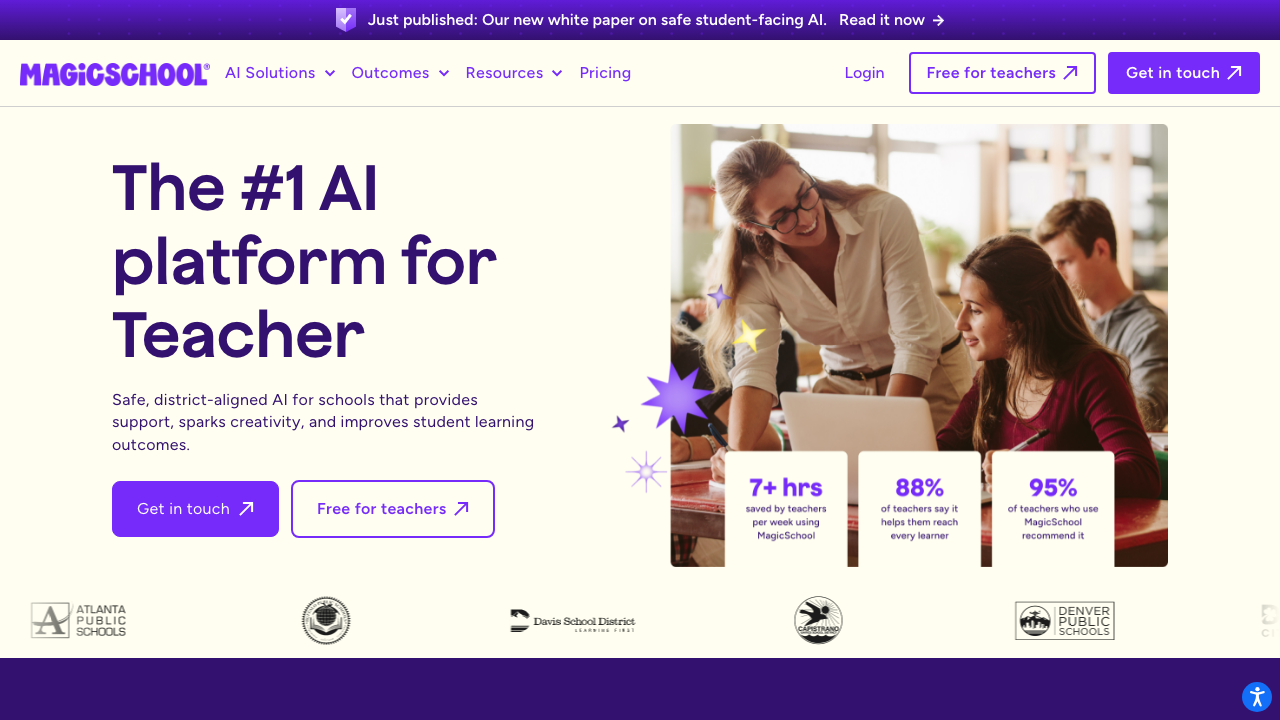
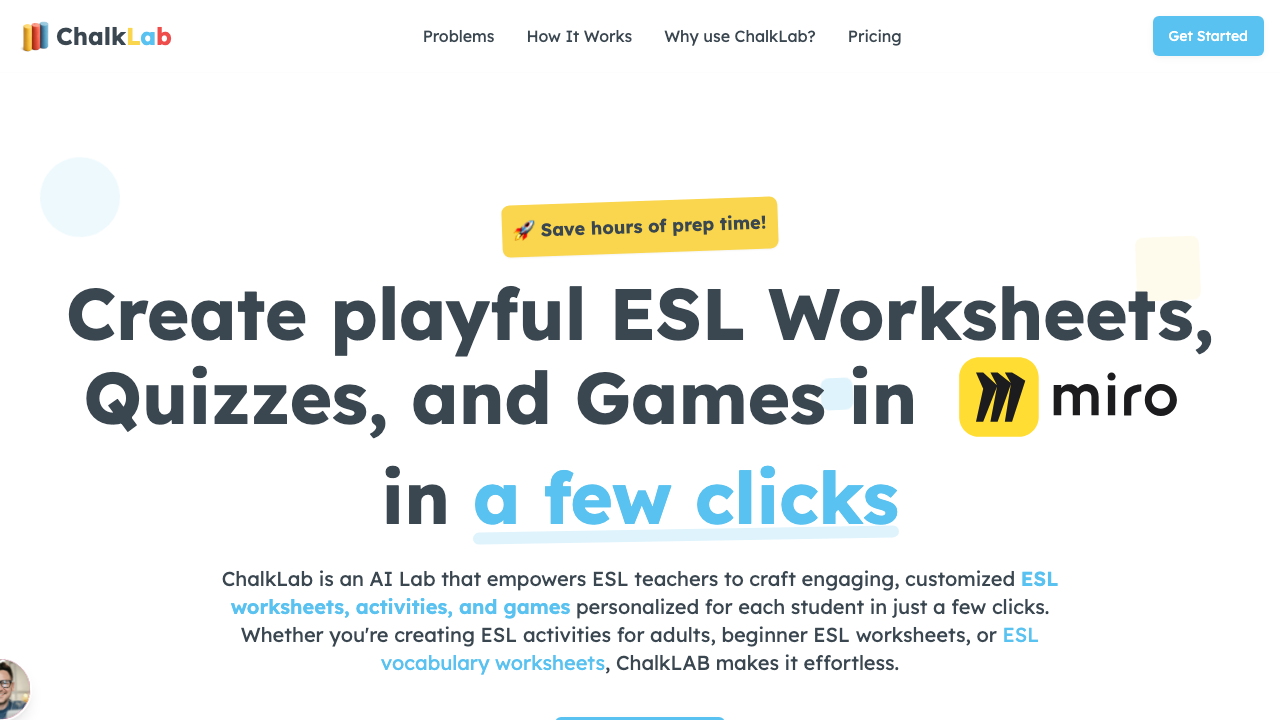
Notion doesn't generate content. It's an organizer, not a creator. You still have to write every lesson plan yourself -- or paste in content from an AI tool like MagicSchool or Chalk.AI.
Offline access is limited. If your school has spotty internet (mine did in my first year teaching in rural New Mexico), Notion can be unreliable.
And the learning curve is real. Notion is powerful but not intuitive. Budget a full afternoon for initial setup.
Notion is the filing cabinet, not the pen. Pair it with AI content generators and you get the best of both worlds -- fast creation plus organized storage.
My Workflow: AI + Notion
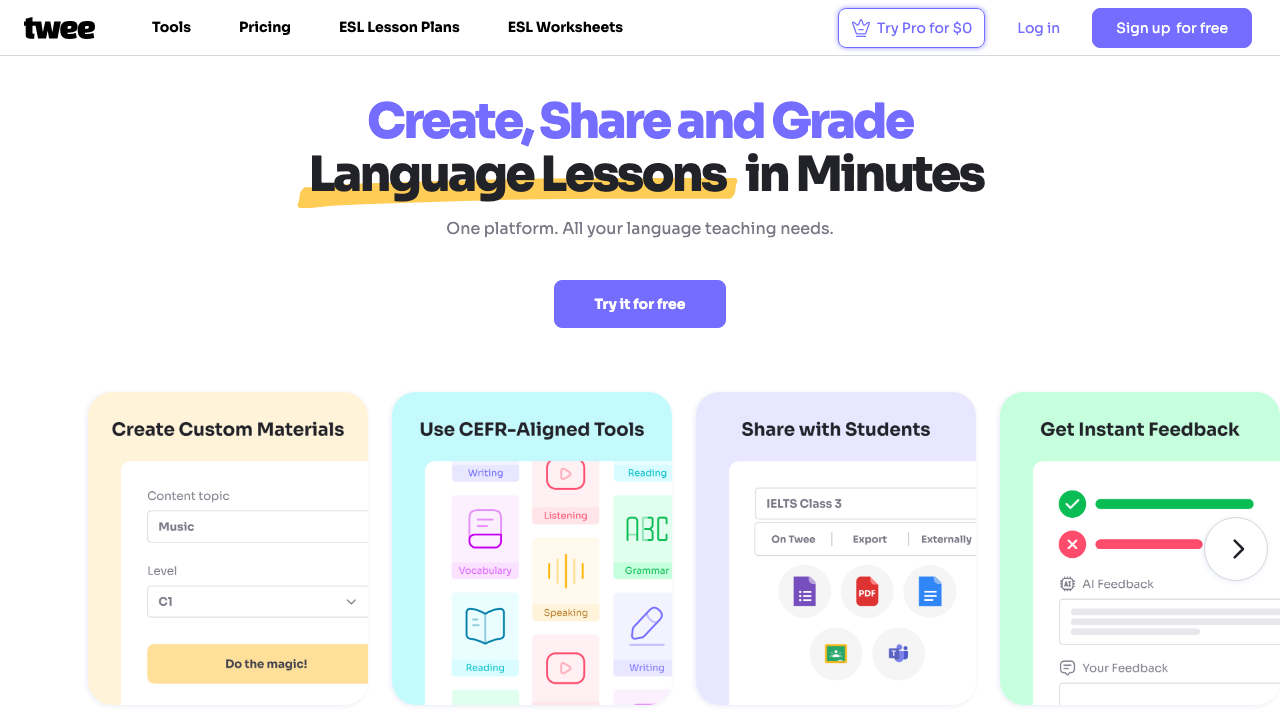
Generate the lesson plan in MagicSchool or Twee. Paste it into a new Notion database entry. Tag it with level, skill, and class. Done. When I need that lesson again next semester, I filter by topic and it's there -- with all the materials attached.
If you're comparing planning tools, check out our take on Google Docs vs. AI tools and our lesson plan structure guide. The tool matters less than having a system you'll actually use consistently.