 Activities
How to Use Padlet for ESL Speaking and Discussion Activities
The first time I used Padlet in class, I set up a discussion board and waited. Within two minutes, 18 out of 22 students had posted something. That's more participation than I'd gotten from verbal discussion prompts all semester. Something about typing (or recording) on a shared board breaks the barrier that speaking in front of the whole class creates.
What Makes Padlet Different for ESL Speaking Activities
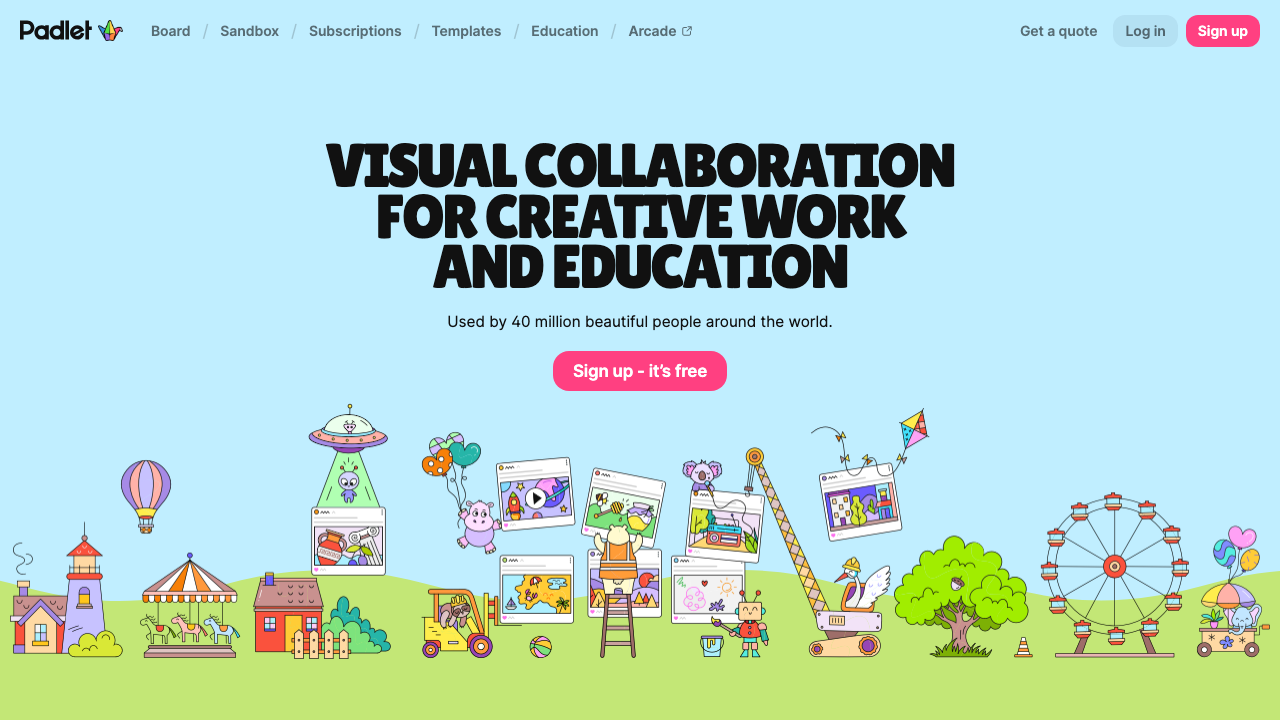
Padlet isn't a speaking app -- it's a collaborative wall. But that's exactly why it works for ESL speaking activities. Students can post text, images, audio recordings, or video clips to a shared board. Everyone sees everyone else's contributions in real time.
For speaking practice specifically, the audio and video post options are what matter. Students record a 30-60 second response, post it, then listen to classmates' recordings and reply. It's asynchronous speaking practice -- which sounds contradictory, but it removes the pressure of real-time performance that shuts down so many ESL learners.
Three ESL Speaking Activities You Can Run on Padlet Today
1. The Opinion Wall -- Post a controversial (but appropriate) statement: "Social media does more harm than good" or "Everyone should learn two languages." Students record a 45-second audio response agreeing or disagreeing. Then they listen to two classmates and record a follow-up response. This mirrors real discussion patterns without the chaos of a whole-class debate.
I ran this with a B1 adult class in Madrid discussing "Remote work is better than office work." The recordings were messy, grammatically imperfect, and full of genuine opinions. Exactly what speaking practice should sound like.
2. Picture Prompt Descriptions -- Upload 6-8 images to a Padlet board. Students choose one and record a description without naming the image. Classmates listen and try to identify which picture is being described. It's essentially a speaking game that practices descriptive vocabulary and listening comprehension simultaneously.
3. Story Chain -- Post the first sentence of a story as text. Each student adds the next sentence as an audio recording. By the end, you've got a collaborative story told through 20 different voices. It's chaotic, funny, and forces students to listen carefully to what came before them.
Setting Up Padlet for Your ESL Class
- Create a free account (you get three boards on the free tier -- enough to test it)
- Choose the "Wall" or "Column" format for discussion activities
- Set posting to "audio/video allowed" in the board settings
- Share the link or QR code -- no student accounts needed
- Turn on moderation if you want to approve posts before they're visible
The free tier limits you to three active boards. Delete old ones or upgrade to Padlet Backpack ($120/year for teachers) if you need more.
Where Padlet Falls Short
It's not a pronunciation tool. Students won't get feedback on their accuracy or fluency from Padlet itself. It's also not great for real-time conversation practice -- there's no live chat or call feature. Think of it as a discussion forum with multimedia, not a video conferencing tool.
The three-board limit on free accounts is genuinely frustrating. If you're running multiple classes, you'll hit that wall fast. And the audio recording quality depends entirely on the student's device -- laptop mics tend to produce better results than phone recordings in noisy rooms.
Pairing Padlet with Other ESL Tools
I use Padlet for the speaking component, then ChalkLab to generate the discussion prompts and vocabulary pre-teaching materials. ChalkLab gives me level-appropriate questions, and Padlet gives students a low-pressure space to answer them.
For more speaking activity ideas, check out our roundup of the best ESL speaking apps and how to generate ESL activities for adults with AI.