 Activities
How to Use Google Forms for ESL Listening Activities
Google Forms isn't designed for listening activities. Let me say that upfront. There's no built-in audio player, no waveform visualizer, nothing that screams "use me for ESL listening practice." But with a simple workaround, it becomes one of the most reliable free tools for self-paced listening exercises -- especially if your school already uses Google Workspace.
The Basic Setup for Listening Activities in ESL
Here's the trick: embed YouTube links or Google Drive audio links directly in the form description. Students click the link, listen, then answer the questions below. It's not elegant, but it works on every device and requires zero student accounts.
Step by step:
- Record your audio or find a YouTube clip (keep it under 3 minutes for lower levels)
- Upload the audio to Google Drive and set sharing to "anyone with the link"
- Create a new Google Form and paste the audio link in the form description
- Add comprehension questions below: multiple choice, short answer, or checkboxes
- Turn on "quiz mode" for automatic grading
That's it. Ten minutes of setup for an activity that auto-grades itself.
Three Listening Activity Templates That Work
Template 1: Dictation Quiz -- Play a short audio clip (30-60 seconds). Students type exactly what they hear in a short-answer field. Google Forms won't grade spelling automatically with nuance, but you can use the "answer key" feature for exact-match grading and manually review close attempts.
Template 2: Comprehension Check -- Link to a 2-minute audio clip or video. Follow it with 5-6 multiple choice questions testing main idea, details, and inference. This is the most common format, and it's effective because the auto-grading gives students instant feedback.
Template 3: Note-Taking Exercise -- Link to a slightly longer clip (3-4 minutes). Students answer paragraph-response questions summarizing what they heard. You can't auto-grade these, but the responses give you rich data about what students are actually catching.
Google Forms works best as a listening activity tool when the audio is short and the questions are specific. Don't try to replicate a 30-minute listening exam -- that's not what this tool is for.
What Google Forms Does Well
Free. Truly free, with unlimited forms and responses. Works on every device. Auto-grades multiple choice and checkbox questions. Exports data to Google Sheets for easy tracking. No student accounts required. Integrates with Google Classroom if your school uses it.
For teachers in under-resourced schools -- and I was one for three years in rural Colombia -- this combination of free and functional is hard to beat.
Where Google Forms Falls Short for ESL Listening
No embedded audio player. Students have to click out to a separate link, which breaks the flow. No control over how many times students can replay the audio. No way to track whether students actually listened before answering. And the interface is plain -- there's nothing visually engaging about a Google Form.
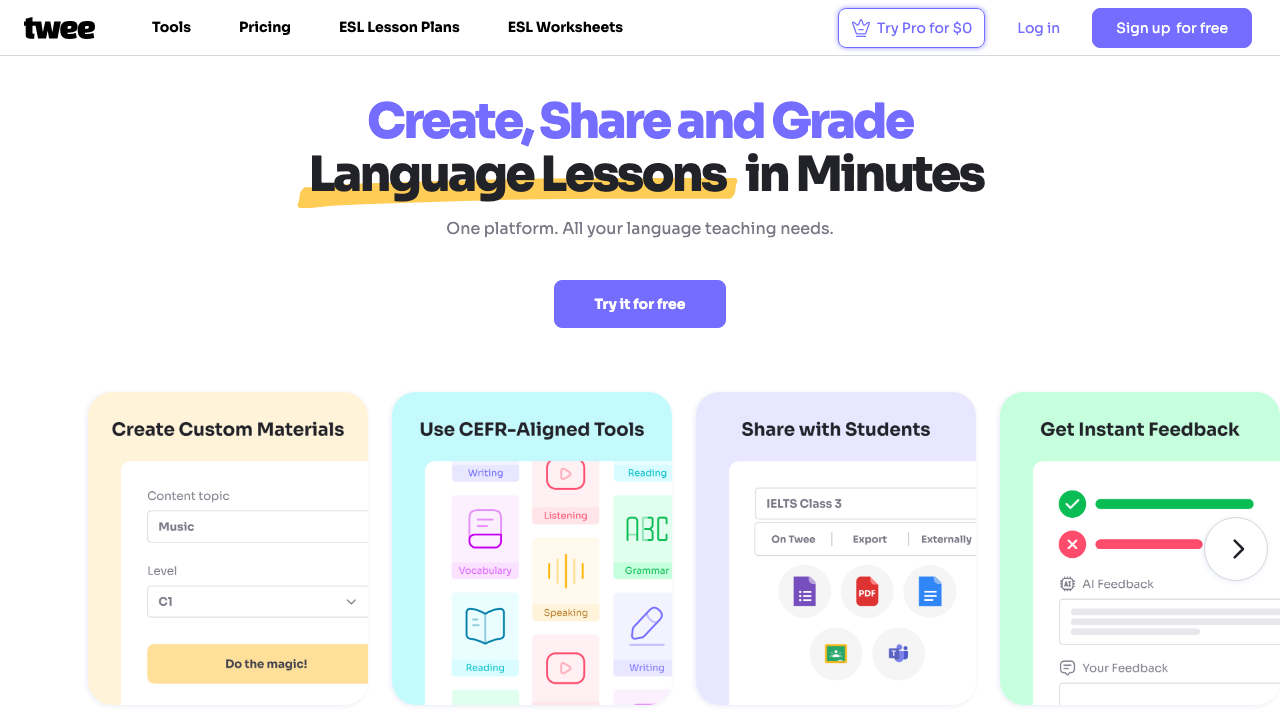
If you need more control, tools like Edpuzzle (which embeds questions directly in videos) or Twee (which generates listening activities from any video) are worth the investment.
Speed Up Question Writing with AI
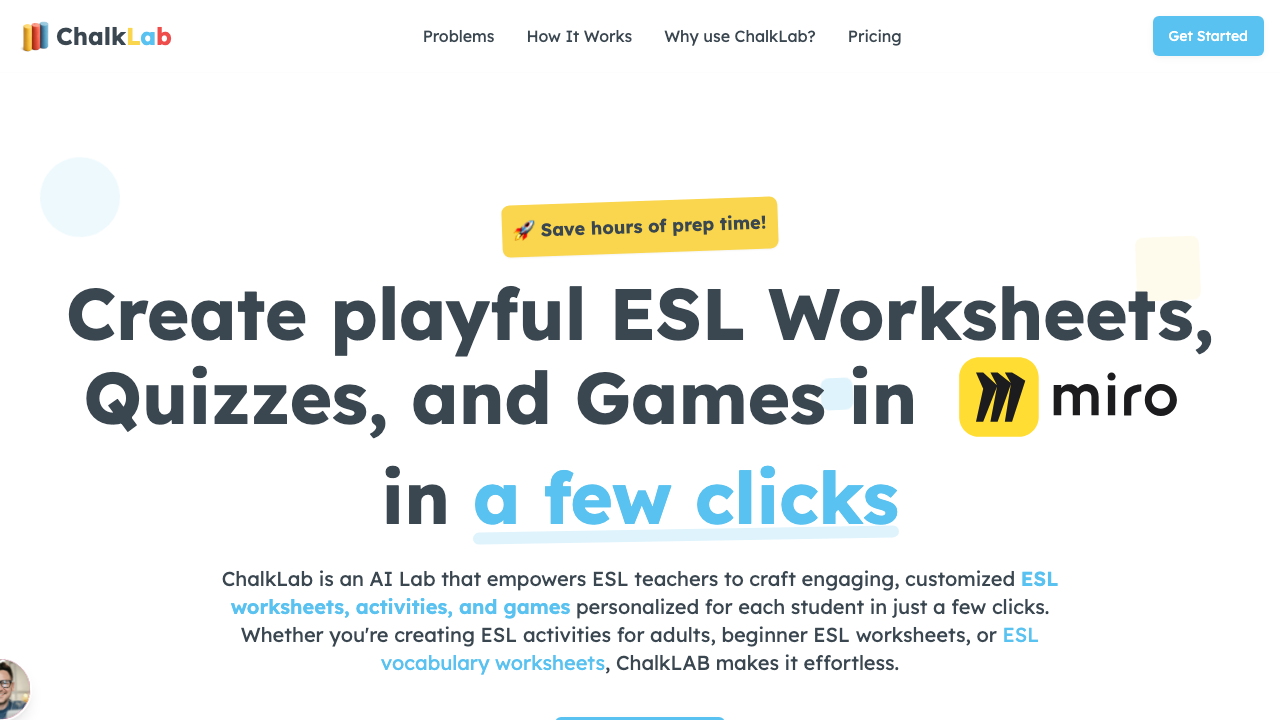
The biggest time sink isn't building the form -- it's writing good comprehension questions. ChalkLab generates level-appropriate listening comprehension questions from any topic or transcript. Write your questions there, then copy them into Google Forms. Cuts the process from 20 minutes to about five.
For more listening resources, see our guide on the best websites for ESL listening activities and how teachers use YouTube for ESL listening.